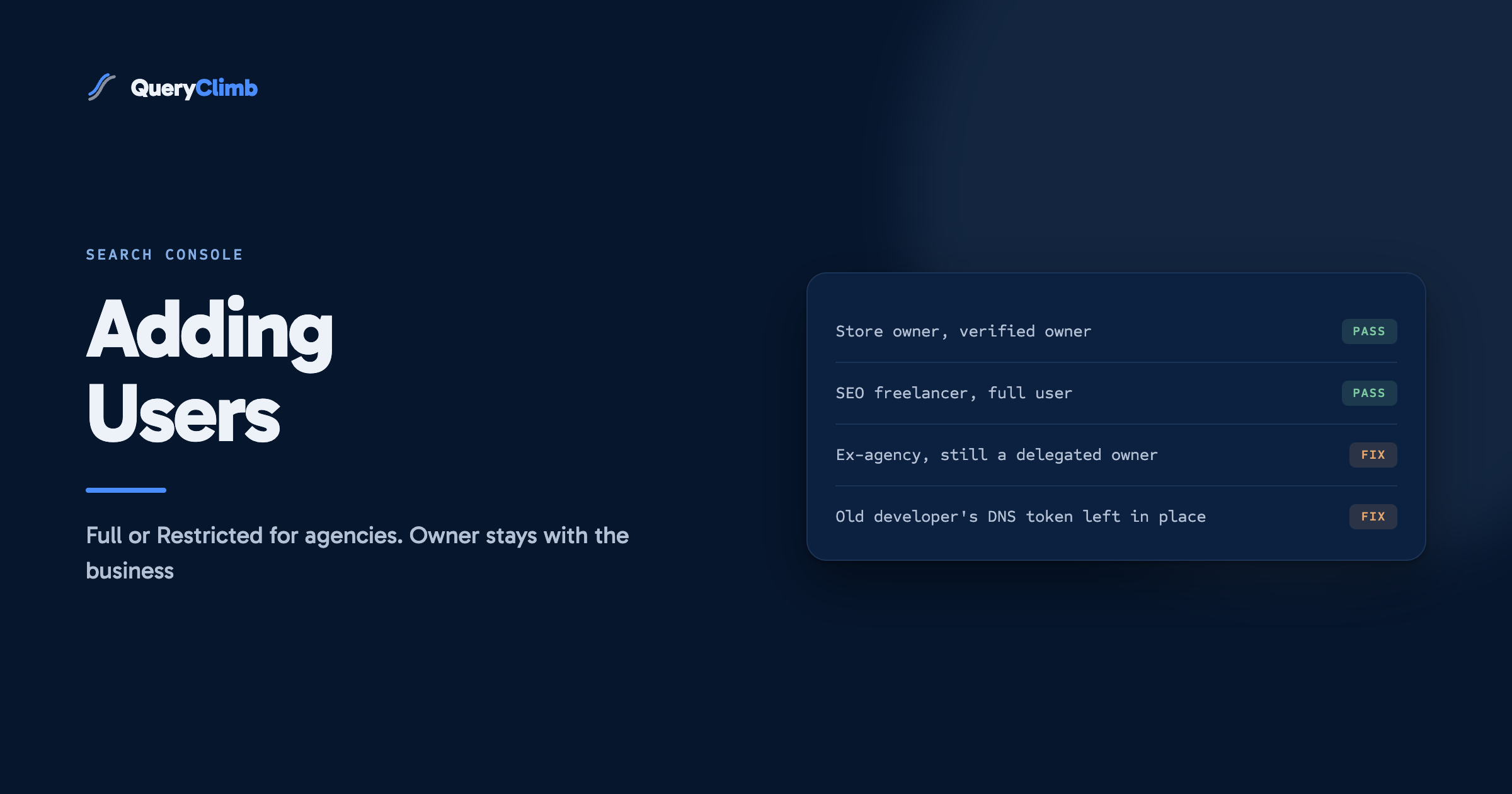
The short answer
Open Settings, then Users and permissions, click Add user, enter the person's Google Account email and pick a permission level. Give an agency or freelancer Full or Restricted access, never Owner, because owners can add and remove everyone else. Keep at least one verified owner inside the business, and review the list whenever someone stops working with you.
Adding a user to Search Console is one of the shortest tasks in the whole tool. The permission level you pick in the dropdown is where stores get into trouble, usually months later, when an agency relationship ends and nobody can work out who controls the property.
The pattern we keep seeing: a freelancer asks for access, the owner is busy, and the quickest option in the dropdown is Owner. It works. Two years on, the freelancer has moved on, they are still an owner, and they could remove the business from its own data if they chose to.
The examples here come from a store selling running shoes: road shoes, trail shoes, insoles, and a blog of fitting and training guides. The steps are the same for any site.
How do you add a user to Google Search Console?
Open the property, go to Settings in the left-hand menu, choose Users and permissions, click Add user, enter the person’s email address, pick a permission level and save. Google’s Managing owners, users, and permissions help page lists the same steps.
- Select the property from the dropdown at the top left. If you have both a Domain property and a URL-prefix property, add the user to the one they will actually work in, or both.
- Open Settings, near the bottom of the left-hand menu.
- Choose Users and permissions.
- Click Add user.
- Enter the email address of the person’s Google Account.
- Choose Full or Restricted from the permission dropdown, and click Add.
Only owners see the Add user button. If you open Settings and the option is missing, you are a user on that property, not an owner, and someone else controls access.
The address has to be a Google Account. That can be a Gmail address or a work address on Google Workspace, but Google notes that email groups cannot be added. If your running shoe store’s SEO contractor uses a company alias that forwards to three people, each person needs to be added under their own account.
Worth knowing
Access is per property, not per account. A store with a Domain property and an older URL-prefix property for the www version has two separate user lists. Adding a freelancer to one does not give them the other, and removing them from one does not remove them from the other.
What is the difference between Owner, Full and Restricted users?
Owners control the property and who can see it, full users can see all the data and take some actions, and restricted users can view most of the data and little else. The exact list of what each can do is in the permissions table on Google’s help page, and it is worth reading once before you choose.
Owner. An owner can add and remove other users, change settings, and use every tool in the property. There are two kinds. A verified owner proved ownership themselves, by uploading a file, adding a meta tag, adding a DNS record or through a connected Google Analytics or Tag Manager account. A delegated owner was granted ownership by a verified owner without verifying anything.
Full user. A full user sees all of the data and can take some actions, such as submitting a sitemap, but cannot manage owners or change who has access. This is the right level for anyone actively doing SEO work on the store.
Restricted user. A restricted user has view access to most of the data. This suits someone who needs to read the reports but has no reason to change anything.
Which permission level should you give an agency or freelancer?
Give an agency or freelancer Full access if they are doing the work, and Restricted if they only need to report on it. Do not give them Owner, even if they ask for it and even if you trust them.
The reason is what an owner can do to everyone else. An owner can remove other owners and users. A delegated owner can add more owners. If the relationship ends badly, or simply ends and nobody tidies up, a former agency with owner rights still holds the keys to your search data.
Here is how access for the running shoe store should look.
| Person | Role | Level |
|---|---|---|
| Store owner | Runs the business | Verified owner |
| Co-founder or operations lead | Backup if the owner is unavailable | Verified or delegated owner |
| SEO freelancer | Fixes indexing issues, submits sitemaps, plans guides | Full |
| Writer producing the trail running guides | Checks which queries a guide earns | Restricted |
| Accountant or investor | Wants to see traffic trends | Restricted |
The one piece of SEO work that needs owner rights is a domain move, because Google’s Change of Address tool requires an owner of both the old and new properties. If a contractor is running a domain migration, that is the moment to grant delegated ownership for the duration of the project and remove it the week the move is confirmed. It is not a reason to make them a permanent owner.
When an agency insists on Owner, ask which task needs it. In our experience the request comes from a template onboarding checklist rather than a real need.
Key takeaway
Owner is for the business, Full is for people doing the work, Restricted is for people reading the numbers. Keep at least two owners who are inside the business, so one person leaving never locks you out.
How do you share Search Console access without sharing your Google login?
Add the person as a user under their own Google Account. Never hand over the password to the account that owns the property, even for a quick job.
Sharing a login hands over everything else on that Google Account, from email to Ads billing, and leaves no record of who did what. When the job ends, the only way out is a password change. Under the user system, each person keeps their own login and removing them is one click.
If you run the store on Shopify, the same principle applies to the store admin. Shopify’s collaborator accounts let an agency work in the admin without a staff login of yours. Search Console access is granted separately and never comes bundled with it.
How do you remove a user or an old owner from Search Console?
Open Settings, then Users and permissions, click the three-dot menu next to the person and choose Remove access. For users and delegated owners, that is the whole job.
Verified owners take one more step, and it is the step most stores miss. A verified owner proved ownership with a token: a file on the site, a meta tag in the theme, a DNS record, or edit rights on a connected Google Analytics or Tag Manager account. Google’s help page is explicit that removing a verified owner in Search Console does not remove that token. While the token is still in place, the person can verify again and walk straight back in.
So the removal has two halves.
- Remove them in Users and permissions.
- Remove their verification token. That means deleting the HTML file from the site root, taking their
google-site-verificationmeta tag out of the theme, deleting their TXT record at the DNS provider, or revoking their edit rights in Google Analytics or Tag Manager if that is how they verified.
On Shopify, a meta tag verification usually lives in theme.liquid or in an SEO app’s settings, and a DNS record lives wherever the domain is managed, which may not be Shopify at all. Google’s verification help page lists each method, which tells you where to look.
What happens if the only verified owner leaves?
If every verified owner is removed, Google says all remaining users and delegated owners lose access to the property after a grace period. Delegated ownership depends on a verified owner still existing.
This is the failure that hurts. A store where the agency set up Search Console, verified it with their own DNS record or tag, and then made the business a delegated owner has its access resting on the agency. If the agency’s token is removed during a theme rebuild, or they remove themselves when the contract ends, the business can find its own property going dark.
The fix is simple and takes ten minutes. Verify ownership yourself, from an account the business controls. A DNS TXT record on a Domain property is the sturdiest option, because it survives theme changes and app uninstalls. Once you are a verified owner in your own right, the agency’s token can go without taking the property with it.
Check which kind of owner you are on the Users and permissions page. If it says delegated owner next to your name, do this before anything else in this post.
How do you audit who has access to your Search Console property?
Open Users and permissions and read every row, asking one question per person: are they still working with you, and do they need this level? Do it twice a year, and every time a contractor or staff member leaves.
A running shoe store’s list after two years of work tends to collect the same leftovers.
- The developer who rebuilt the theme for the spring trail collection, still a full user.
- An agency from a previous contract, still a delegated owner.
- A writer who produced the half marathon training guides, still a restricted user.
- A personal Gmail belonging to a former employee.
For each one, downgrade or remove. Then check the tokens. Search the theme code for google-site-verification, look at the TXT records at your DNS provider, and check the root of the site for stray google HTML files. Any token that does not belong to a current verified owner can be removed.
Finally, look at associations under Settings. Linked Google Analytics properties and other associated accounts are listed there, separately from users. Google’s help page notes that a person with edit rights on a linked Analytics account can use it to verify, so an old Analytics admin is also a route back in. Removing them there matters as much as removing them in Search Console.
What this costs to run
The manual method costs nothing and takes a few minutes twice a year. Add a reminder to your calendar for the same week you review your sitemap, and the access list stays clean.
QueryClimb connects to Search Console through Google’s own sign-in, so it never needs a shared password or owner rights to read your data. What it does with that data is the work on the other side of this post: Search Insights surfaces the queries each page earns, the content calendar and the blog writer turn those queries into guides, and internal linking points those guides at the products they discuss. Everything it does can be done by hand from the Performance report, and our post on striking distance keywords shows how. The tool buys back the hours, and the pricing is public. The case study and the blog SEO system show the loop on our own store.
Frequently asked questions
How do I give someone access to my Google Search Console?
Go to Settings, then Users and permissions, and click Add user. Enter their Google Account email, choose Full or Restricted, and click Add. They will see the property the next time they open Search Console.
Why can’t I add users in Google Search Console?
Only owners can add users. If the Add user button is missing, your account is a full or restricted user on that property, and you need an owner to add you or upgrade you. Also check you are in the right property, since Domain and URL-prefix properties have separate user lists.
Can you add a non-Gmail address to Search Console?
Yes, as long as the address is a Google Account, which includes work addresses on Google Workspace and non-Gmail addresses registered as Google Accounts. Email groups and distribution lists cannot be added.
What is the difference between a verified owner and a delegated owner?
A verified owner proved ownership with a token such as a DNS record, HTML file or meta tag. A delegated owner was given ownership by a verified owner. If all verified owners are removed, delegated owners lose access after a grace period, so the business should always hold at least one verified ownership itself.
How many users can you add to a Search Console property?
Google’s help page sets a limit of 100 users who are not owners on a property. Owners have their own separate limits. A single store is very unlikely to reach either.