The short answer
Shopify's default robots.txt already blocks carts, checkouts, internal search and sorted collection URLs, so most stores have nothing useful to add. Edit robots.txt.liquid only to name AI crawlers explicitly, to stop a genuine duplicate crawl path on a large catalogue, or to write different rules for a second domain. Disallowing a page does not remove it from Google.
Shopify has let you edit robots.txt since 2021, through a theme template called robots.txt.liquid, and the number of stores that should touch it is small. The default file is already sensible. Most of the edits people search for either do nothing, or do the opposite of what they intended.
This guide covers what the default blocks, where the template lives, the difference between crawling and indexing that trips up almost every robots.txt decision, and the three edits I think are worth the risk. Examples run through a cast iron cookware store: skillets, dutch ovens, seasoning wax, a catalogue with a lot of near-identical products in a lot of overlapping collections.
What is robots.txt.liquid and where do you find it on Shopify?
It is a theme template that generates your store’s robots.txt file at request time. You add it through Online Store, Themes, the three dots next to your live theme, Edit code, then Templates, Add a new template, and pick robots.txt from the type list. Shopify creates a file that renders the default rules, and you edit around them rather than replacing them.
Two things to know before you open it. The template belongs to a theme, so if you edit the live theme and later publish a different one, your rules go with the old theme and quietly disappear. And robots.txt applies to the whole store, so a bad wildcard can hide your catalogue from Google in one save. Duplicate the theme before you edit.
What does Shopify’s default robots.txt already block?
More than most store owners realise. Pull up yourstore.com/robots.txt and read it before you plan a single change. The default group for all crawlers blocks the admin, the cart, the checkout, customer accounts and order pages, plus the paths that generate near-infinite crawlable variations of your catalogue:
- Sorted collection URLs, everything matching
/collections/*sort_by*. - Filtered collection URLs built with the plus separator, in raw and encoded forms.
- Internal search results at
/search. - Theme and script preview parameters.
- Your policy pages.
There are also separate groups for adsbot-google, Nutch, AhrefsBot, AhrefsSiteAudit, MJ12bot and Pinterest, and a Sitemap: line pointing at your sitemap index.
That list matters because it removes the two most common reasons a store goes looking for robots.txt in the first place. If you were about to block sorted collection URLs so Google stops crawling the same 40 skillets in nine orders, Shopify did it years ago. If you were about to block internal search results, same answer.
Worth knowing
Your robots.txt rules live in the theme, not the store. Publish a new theme without copying robots.txt.liquid across and every rule you wrote is gone, silently, with nothing in the admin to tell you.
Does editing robots.txt remove a page from Google?
No, and this is the single most expensive misunderstanding in the topic. Robots.txt controls crawling. Indexing is separate. Blocking a URL tells Google not to fetch it, which means Google cannot read the page, cannot see a noindex tag on it, and cannot see that it is thin or duplicated. If that URL already sits in the index, or if anything links to it, it can stay in results as a bare title with the note that no description is available.
So the tool for “get this page out of Google” is a noindex meta tag, or removing the page. The tool for “stop wasting crawl requests on a path that will never rank” is robots.txt. They are not interchangeable, and using the crawl tool for the index job produces the worst of both: the page stays listed, and Google can no longer tell why it should not be.
The related mistake is blocking a URL that you also want out of the index. If you add noindex to your cast iron care hub and disallow it in the same afternoon, the disallow stops Google seeing the noindex and the page can sit there for months. Let it be crawled until it drops, then block it if you still care.
Which edits to robots.txt.liquid are actually worth making?
Three, in my experience running a Shopify catalogue and looking at other people’s.
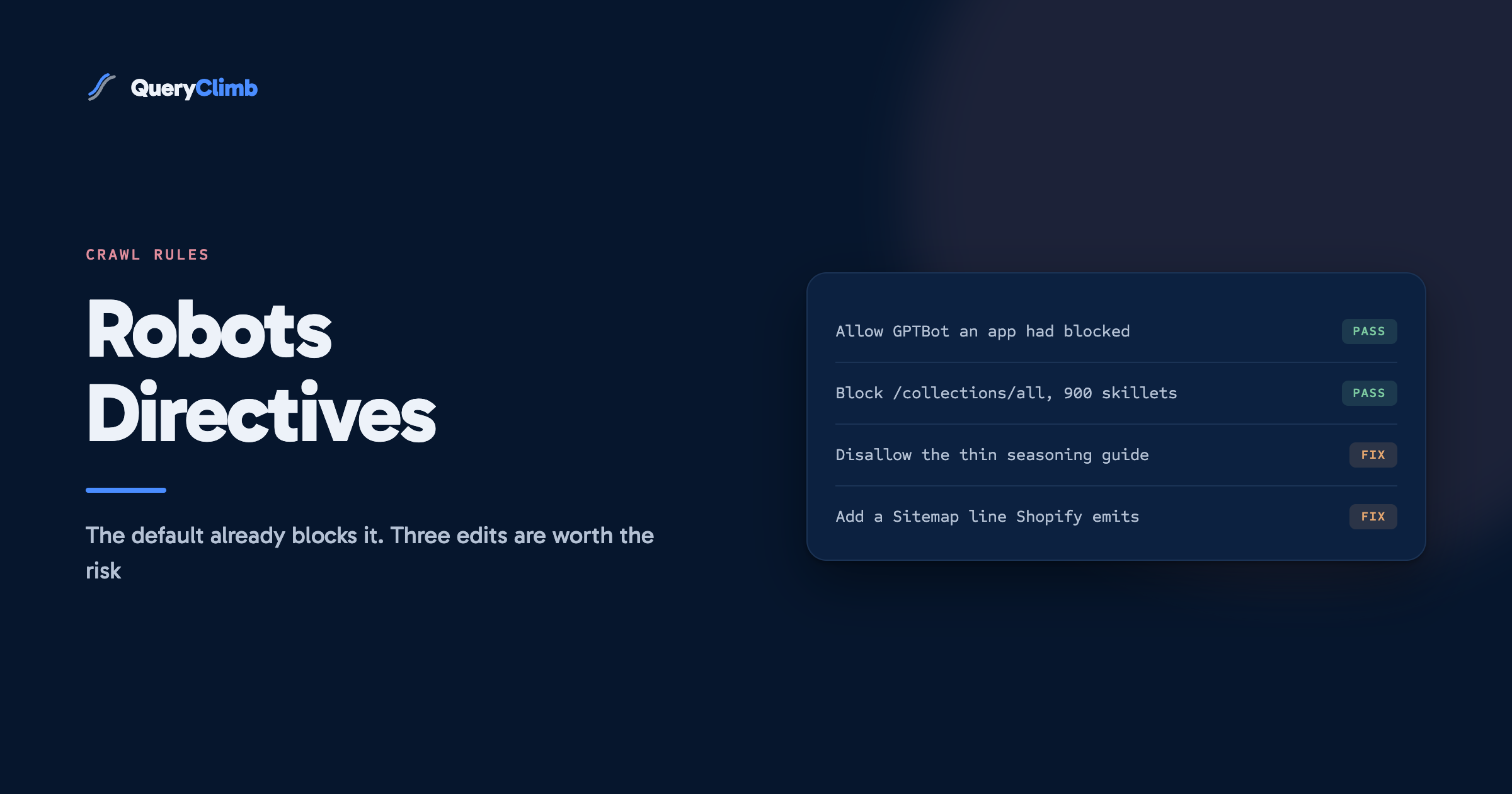
Naming the AI crawlers yourself. Shopify’s default does not block GPTBot, ClaudeBot, PerplexityBot or Google-Extended, but plenty of SEO apps and theme snippets add rules that do, usually framed as content protection. If you want your product pages quoted in an AI answer, that protection is invisibility. Writing your own explicit group for the crawlers you want removes the ambiguity and survives the next app install. On our own store we run named groups for GPTBot, OAI-SearchBot and ChatGPT-User that allow the catalogue and the blog while keeping accounts, carts and checkouts out. The wider question of what makes a page citable is covered in the guide to getting cited by ChatGPT and Google AI.
Blocking a genuine duplicate crawl path on a large catalogue. The usual candidate is /collections/all on a store where every product also lives in a real collection. On 40 products this is not worth a line of code. On 900 it is thousands of crawl requests spent re-reading a page that exists to be a fallback. Check Search Console’s crawl stats before you decide, and only act if the path is genuinely taking a visible share.
Writing different rules for a second domain. Shopify exposes request.host inside the template, so a store serving a secondary domain, a wholesale front or a market-specific domain can block the one you do not want crawled while leaving the primary untouched. This is the edit with the clearest payoff and the smallest audience.
Everything else I see recommended falls into one of two piles. Pointless: adding a Sitemap: line Shopify already emits, or setting a crawl-delay for Googlebot, which Google ignores. Harmful: disallowing thin content instead of fixing or deleting it, unblocking /search so internal search results can compete with your collections, or copying a robots.txt template from a WordPress guide into a Shopify theme.
What the data showed us
Reading our own live file for this post, the last line of the custom section is Sitemap: /sitemap.xml, a relative path. The sitemap directive requires an absolute URL, so that line does nothing. It sat there unnoticed because nothing in Shopify validates the template and nothing in Search Console complains. If you have edited yours, read the rendered output rather than the code.
How do you write a rule in robots.txt.liquid without breaking the file?
By editing inside Shopify’s loop rather than around it. The template renders each default group in turn, and you add your line conditionally when the loop reaches the group you care about. Adding a rule for all crawlers looks like this:
{% for group in robots.default_groups %}
  {{- group.user_agent }}
  {% for rule in group.rules %}{{- rule }}
  {% endfor %}
  {%- if group.user_agent.value == '*' %}
    {{ 'Disallow: /collections/all' }}
  {%- endif %}
  {%- if group.sitemap != blank %}
    {{ group.sitemap }}
  {%- endif %}
{% endfor %}
Three details decide whether it works. The user_agent.value comparison is how you target a single group rather than repeating your rule for every crawler in the file. New rules go inside the loop but after the default rules, so you are adding rather than replacing. And anything you want to appear for a crawler Shopify does not already list has to be written as its own group after the loop closes, with its own user-agent line.
For per-domain rules, wrap the same block in a host check:
{%- if request.host == 'wholesale.example.com' %}
  {{ 'Disallow: /' }}
{%- endif %}
What should you check after you publish the change?
Load the file and read it. Not the template, the rendered output at yourstore.com/robots.txt, because Liquid whitespace control is unforgiving and a misplaced hyphen can join two directives onto one line, which makes both invalid. Fetch it from outside your browser so no cache is involved:
curl -s https://yourstore.com/robots.txt | head -n 40Then check the rules do what you meant. Search Console’s URL Inspection tool tells you, for any URL you paste, whether crawling is currently allowed. Test three: a product you want crawled, a collection you want crawled, and the path you just blocked. If the first two come back blocked, revert immediately and work out what your wildcard actually matched.
After that, watch rather than assume. Crawl stats in Search Console shift over weeks, not days, and a coverage report that changes the morning after your edit is almost certainly unrelated. If you blocked a path for crawl budget reasons, the number to watch is total crawl requests against the paths that matter, not total impressions.
Key takeaway
Read your rendered robots.txt before you plan an edit, and again after you publish one. Most stores discover the default already covers what they were about to write, and the ones that do edit find their mistake in the output rather than in the template.
Where this fits in the rest of the work
Honestly: near the bottom. Robots.txt is a twenty minute job you do once, and it does not move rankings on its own. The store with a correct robots.txt and nothing to rank still has nothing to rank. Every hour I have spent on crawl directives has returned less than an hour spent on the queries where the store already appears at position 8 and could appear at position 4, which is the workflow in the striking distance guide and the reason the whole content system is built around Search Console rather than around a technical audit.
Do this edit if one of the three cases above applies to you. Then go back to the work that compounds. We built QueryClimb around that ordering: Search Insights surfaces the queries worth acting on, the content calendar decides what gets written and when, the blog writer drafts against a real brief, and internal linking wires each new page into the ones that already rank. All of it works manually with Search Console and a spreadsheet, which is how we ran it for months before there was a tool. What you are buying is the hours back, at the prices on the pricing page, and the case study shows what the manual version produced first.
Frequently asked questions
Can you edit robots.txt on Shopify?
Yes, since June 2021, through a theme template called robots.txt.liquid. You add it in the code editor for your live theme under Templates. You cannot upload a static robots.txt file the way you would on a self-hosted site, and the template edits the default rules rather than replacing them.
Why is my Shopify robots.txt blocking my product pages?
Almost always because a rule you or an app added matched more than intended. Wildcards in robots.txt are greedy, and a line meant to block one collection can match every URL containing that string. Paste a blocked product URL into Search Console’s URL Inspection tool, which names the specific rule that matched, then fix that line rather than rewriting the file.
Does Shopify block AI crawlers by default?
No. The default file has groups for adsbot-google, Nutch, AhrefsBot, AhrefsSiteAudit, MJ12bot and Pinterest, and none for GPTBot or the other AI crawlers, which means they are allowed under the rules for all crawlers. If yours are blocked, an app or a theme snippet added the rule. Read your live file rather than assuming either way.
Should I block /collections/all on Shopify?
Only on a large catalogue where every product also sits in a real collection and crawl stats show the path taking a meaningful share of requests. On a small store it changes nothing worth measuring. It is also worth remembering that /collections/all is where a lot of themes send their default navigation, so check what links to it before you block it.
Will disallowing a URL in robots.txt remove it from Google?
No. It stops Google fetching the page, which can leave an already-indexed URL listed with no description and no way for Google to see a noindex tag. Use noindex or delete the page to remove it, and use robots.txt only to stop crawling of paths you are happy to leave in whatever state they are in.