The short answer
Link them in GA4 under Admin, Product links, Search Console links, with Editor access in Analytics and verified ownership in Search Console. Then publish the Search Console collection from the Reports library, because it is hidden by default and that is why most people think the link failed. You get two reports, and only the landing page one is worth opening. You never get revenue by query.
Linking Search Console to Google Analytics puts Search Console’s clicks and impressions inside GA4, next to Analytics’ own figures for the same landing pages. It takes about five minutes, costs nothing, and is worth doing once. It is also the most oversold integration in Google’s free stack, because almost everyone who sets it up expects to see which search queries made money, and that report does not exist.
This post is the how-to and the honest scope. If you want the background on why the two tools count different things in the first place, our post on Search Console vs Google Analytics covers it. Here we assume you have both running and want them talking.
How do you connect Search Console to Google Analytics?
You create the link from the Analytics side, in the GA4 property’s Admin screen. Search Console has no button that starts it.
The steps, as Google’s own help page for the link lays them out:
- In GA4, open Admin and find Search Console links under Product links.
- Click Link, then Choose accounts, and pick the Search Console property you manage.
- Click Confirm, then Next.
- Choose the web data stream for your store.
- Click Next again and Submit.
That is the link made. It is not the reports switched on, which is a separate step covered below and the one that catches most people out.
Two choices in that flow matter more than they look. The first is which Search Console property you pick. If your account has both a Domain property and a URL-prefix property for the same store, pick the Domain one. A Domain property covers every subdomain and both protocols, so it counts traffic on www, the bare domain and anything else that slipped into the index. A URL-prefix property only counts the exact prefix it was created for. Google’s page on adding a website property explains the difference, and on a store that changed its domain at some point the gap between the two can be most of your history.
The second is the data stream. A GA4 property can have only one data stream linked to Search Console, and one Search Console property can link to only one web stream. A store with one domain and one stream will never notice. A store that runs a separate wholesale site in the same GA4 property will, and has to decide which one gets the link.
What permissions do you need to link them?
You need Editor access on the GA4 property and verified ownership of the Search Console property, both on the same Google account.
The Analytics half is rarely the problem. The Search Console half often is, because “owner” in Search Console comes in two kinds. A verified owner proved ownership themselves, with a DNS record, a meta tag or a file. A delegated owner was given ownership by somebody else. Google asks for a verified owner here, and the person who set up Search Console for a store is very often an agency, a freelancer or a former employee rather than the person now trying to make the link.
If the account you are using is not a verified owner, you can verify during the linking flow. On a Shopify store the quickest route is usually a TXT record at the domain registrar for a Domain property, since the theme meta tag only covers URL-prefix properties. Our post on adding and removing users in Search Console covers the owner types in more detail.
Worth knowing
A linked Analytics property shows up under Settings, Associations in Search Console. Anyone with edit rights on that Analytics property can use it to verify ownership of the Search Console property. When you remove somebody from GA4, check whether that was their route into Search Console too.
Why can’t I see the Search Console reports in GA4?
Because the report collection is unpublished by default, and creating the link does not publish it.
After the link is made, open Reports in GA4, then the Library at the bottom of the left-hand menu. You will find a collection called Search Console sitting there, unpublished. Open its menu and choose Publish. Only then does a Search Console section appear in the left-hand navigation.
In our experience this accounts for most of the “I linked them and nothing happened” complaints, because the link screen says the link was created and nothing tells you there is a second switch.
Two other reasons for an empty report, once the collection is published:
- Lag. Search Console data reaches Analytics about 48 hours after it is collected, the same delay it has inside Search Console. A link made this morning shows nothing for today and yesterday.
- The wrong property. If you linked a URL-prefix property for
https://example.comand the store actually serveshttps://www.example.com, the reports will be nearly empty. Unlink, then link the Domain property.
Links cannot be edited. To change which property or stream is linked, delete the link and create a new one.
What do the linked reports actually show?
Two reports: Google Organic Search Queries and Google Organic Search Traffic. One of them is useful.
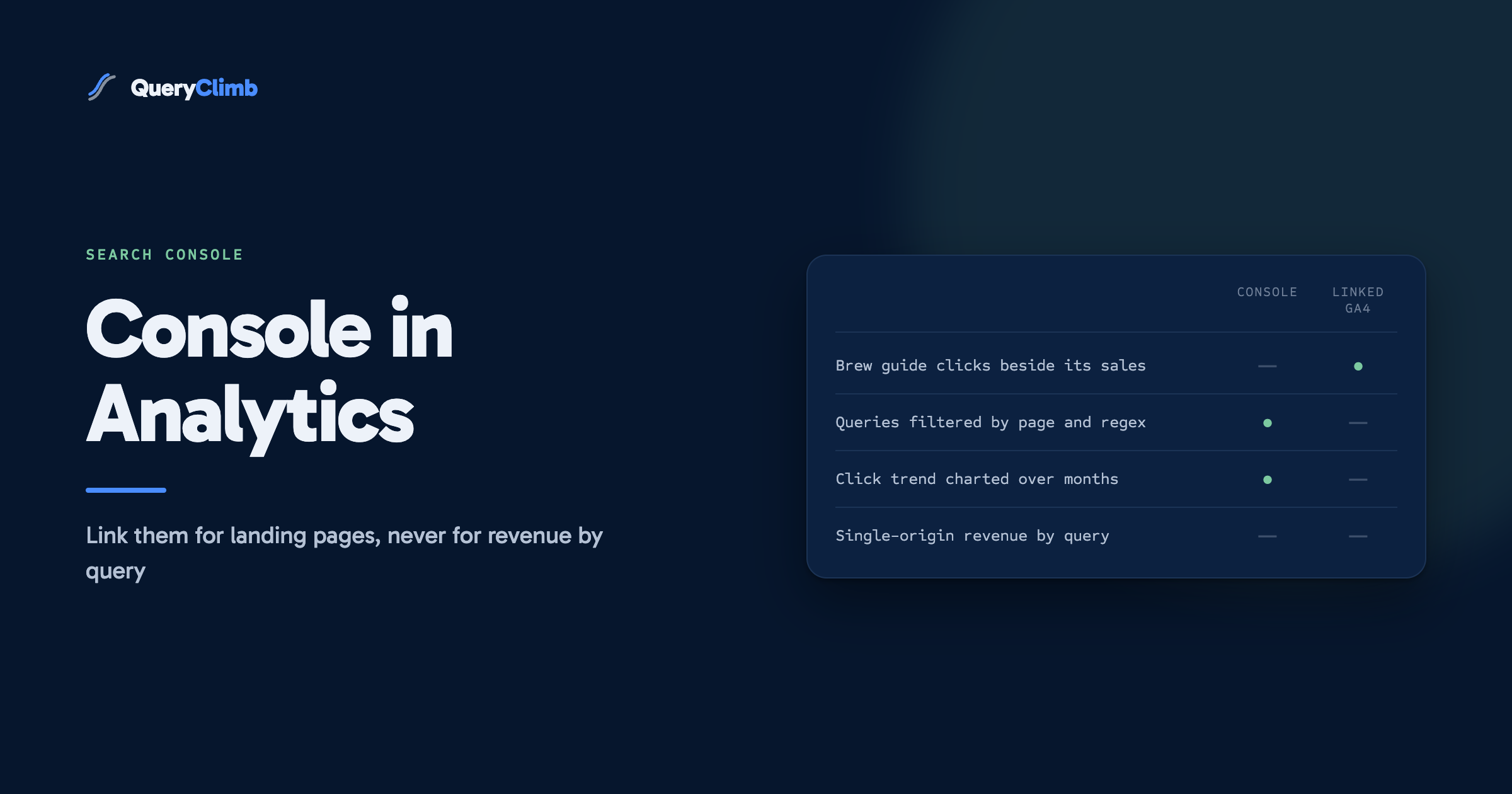
Queries lists search queries with Search Console’s clicks, impressions, click-through rate and average position. You can drill into it by Search Console’s own dimensions but not by any Analytics dimension. In practice it is a slower, less flexible copy of the Performance report you already have in Search Console, with fewer filters. For a coffee roaster, it will tell you how many clicks “aeropress ratio” earned and at what average position. Search Console told you that already, and lets you filter it by page, date range comparison and regular expression, none of which you can do here.
Organic Search Traffic is the report that earns the link. It lists landing pages with Search Console’s clicks and impressions next to Analytics’ own metrics for the same page. That pairing is the only thing in the integration you cannot get from either tool alone without exporting both and matching them by hand.
Search Console metrics in these reports can only be broken down by three Analytics dimensions: landing page, device and country. Anything else, such as session source, user type or the product someone bought, will not combine with them. The reports also do not support time-series charts, so you are reading a table for a date range rather than a line over time.
What the data showed us
On our own store, Supplements Wise, the landing page report was where the link paid for itself, and only there. The pages with the most Search Console clicks were not the pages that earned the most. Several of our biggest informational guides brought lots of clicks and very little revenue, while a handful of smaller comparison pages did far more with a fraction of the traffic. Neither tool showed that on its own. Seeing it in one table changed which pages we refreshed first.
Can you see revenue by keyword after linking?
No. The link joins the two data sets on landing page, never on query.
Search Console knows the query but not what the visitor did afterwards. Analytics knows what the visitor did but has not received a search query since Google moved search to HTTPS in 2011. The link puts the two tables side by side on the one column they share: the page someone landed on.
So the closest you can get is a two-step read, and it works fine:
- In the Organic Search Traffic report, find the landing pages that earn money. For a coffee shop that might be
/collections/single-originand a buying guide to burr grinders, rather than the brew guide that gets far more clicks. - Take those URLs into Search Console’s Performance report, filter to each page, and read the queries that bring people to it.
That gives you revenue by page and queries by page, which is close to revenue by query for most pages, because most store pages rank for one family of related searches. It breaks down on a page that ranks for two very different things. A grinder guide that ranks for both “best burr grinder” and “how to clean a coffee grinder” earns its revenue from one of those audiences, and nothing in either tool will tell you which.
If you need the actual row-level join, the route is Search Console’s bulk data export to BigQuery alongside GA4’s own BigQuery export, and SQL to match them. For a single store that project is rarely worth the time.
Key takeaway
Link the tools, publish the collection, and use one report: organic landing pages with clicks next to engagement and conversions. Read queries in Search Console itself. Treat the landing page as the join, and do not spend a week chasing revenue by keyword.
Is the link worth setting up if you already use Search Console?
Yes, for the one landing page report, and for nothing else.
The Queries report inside GA4 is a weaker copy of the Performance report. Google’s own guide to using Search Console and Analytics data together frames the tools as complementary for the same reason: each one answers a question the other cannot see.
The landing page report is different. It answers the question “which of the pages Google sends people to are worth defending”, and that is the question that should decide your monthly content work. A brew guide losing clicks is a shrug if it never converted. A single-origin collection page losing clicks is the first thing to fix this week.
What neither tool does is remember. GA4 shows you a date range. Search Console shows you a date range. Next month you open both again with no record of what moved, what you changed, or what you decided to leave alone. That is the gap QueryClimb was built for on our own store: it reads the Search Console API on a schedule and keeps the history, so Search Insights shows a query’s trend over months, and the content calendar turns it into dated work. The manual version, with the linked landing page report and a spreadsheet, works without it, and the routine we run is written up in our blog SEO system. The tool buys back the hours. The pricing is public and the case study shows what the routine did for our traffic.
How should a store use the linked report each month?
Open it once a month, sort by Analytics revenue or key events, and read down the list with Search Console clicks beside it.
Pages fall into four groups, and each one gets a different decision:
- High clicks and high revenue are the pages to protect. Check their queries in Search Console for slipping positions before anything else.
- High clicks and low revenue are informational pages. They need a clearer route to products, not more traffic.
- Low clicks and high revenue are the pages to grow. Most of the time they are sitting just off page one, and that is where striking distance keywords come from.
- Low clicks and low revenue can wait, and often should be left alone entirely.
For a coffee roaster, that turns a long list of landing pages into a handful of decisions. That is the right size for a month.
Frequently asked questions
Why is Search Console not showing in Google Analytics?
Almost always because the Search Console collection has not been published. Linking creates the connection but leaves the reports hidden. Go to Reports, then Library, find the Search Console collection and publish it. If the reports then appear but are empty, check you linked the right property type and allow 48 hours for data to arrive.
How do I connect Google Search Console to GA4 on Shopify?
The same way as on any site, because the link lives entirely in Google’s tools. Shopify’s role is only to have GA4 installed and Search Console verified. Make sure your account is a verified owner of the Search Console property, then link from GA4 Admin, Product links, Search Console links, and publish the collection.
Can I link more than one Search Console property to one GA4 property?
No. A GA4 property can have only one data stream linked to Search Console, and each Search Console property links to one web stream. If you have both a Domain and a URL-prefix property for the same store, link the Domain property, since it covers every version of the site.
Does linking Search Console to Google Analytics change my data?
No. The link only reads data into new reports. It does not alter what Search Console collects, what Analytics tracks, or any existing report. Deleting the link removes the Search Console reports from GA4 and leaves everything else as it was.
Can I see which keywords made sales in Google Analytics?
No. The linked reports join on landing page, not on query. You can see which landing pages earned revenue and, separately in Search Console, which queries reached each page. Matching individual queries to sales needs both data sets exported to BigQuery and joined there.