The short answer
Your Shopify sitemap is at yourstore.com/sitemap.xml, generated automatically and updated as you add products, collections, pages and posts. Submit that one URL once in the Sitemaps report in Search Console and leave it. The file cannot be edited, so the real work is controlling what it lists: app pages, empty collections and retired products all go in by default, and the seo.hidden metafield or an Unlisted status takes them out.
Most Shopify sitemap guides stop at step two: find the file, paste it into Search Console, done. Shopify has already done most of that for you.
The more useful question is what the sitemap is telling Google about your store. Shopify lists every published page by default, including the ones you would never put in your navigation, and a sitemap is a statement that each of those URLs is worth crawling.
The examples here come from a store selling dog and cat gear: padded harnesses, leads, orthopaedic beds, grooming brushes, and the guides on its blog about measuring a dog for a harness or choosing a bed for an older dog. Where we mention real data, it comes from our own Shopify store, Supplements Wise.
Where is the sitemap on a Shopify store?
It is at the root of your primary domain: yourstore.com/sitemap.xml. Shopify’s sitemap help page says every store generates one automatically, covering products and their primary image, pages, collections and blog posts, and that it updates when you add any of them.
Open it in a browser and you will not see your products. You will see a sitemap index: a short file pointing at child sitemaps, one per type of content.
sitemap_products_1.xmllists your products, with the primary image for each.sitemap_collections_1.xmllists your collections.sitemap_pages_1.xmllists the pages created under Online Store, and anything an app created there.sitemap_blogs_1.xmllists your blogs and every article in them.
The product, page and collection files carry from and to parameters in the URL, which are ID ranges. A small store has one of each. A large catalogue gets split across several.
When we fetched the Supplements Wise sitemap for this post in September 2026, the index also listed a fifth file, sitemap_agentic_discovery.xml, containing a single URL for an agents.md file. It appeared without us doing anything. If yours has it too, leave it alone.
If you sell in several languages or through international domains, Shopify generates sitemap files for each domain and adds the translated URLs automatically. Nothing needs configuring.
Worth knowing
A store still behind its password page has a sitemap Google cannot read. Shopify says so on the same help page. If you submit it before launch, Search Console will report an error, and the fix is to remove the password, not to resubmit.
How do you submit a Shopify sitemap to Google Search Console?
Open your property in Search Console, choose Sitemaps from the left-hand menu, type sitemap.xml into the box and press Submit. That is the whole job.
A few details catch people out.
- Submit the index, not the children. Google reads the child sitemaps from the index and shows them underneath it in the report.
- Submit it on the primary domain. If Search Console is verified for
www.yourstore.comand your primary domain is the bareyourstore.com, or you submit themyshopify.comaddress, you are pointing Google at a sitemap for a host that redirects. - Submit it once. Shopify updates the file as the catalogue changes, and Google’s Sitemaps report documentation says resubmitting is only worth doing after big changes. Pressing the button weekly does not bring Google back sooner.
- Do not delete it to “reset” anything. Google’s help page is explicit that deleting a sitemap from the report does not make Google forget the sitemap or the URLs in it.
Your robots.txt already announces the sitemap to every crawler, so Bing and the others find it without a separate step. If you have edited robots.txt.liquid, check that line still renders as a full URL. Our robots.txt post covers the one we found broken on our own store.
Can you edit the sitemap on Shopify?
No. The file itself cannot be edited, and the comment at the top of every Shopify sitemap index says as much. What you control is which resources are published, and the sitemap follows.
That is the right design, since a hand-edited sitemap drifts out of date. The trade-off is that everything published to the Online Store gets listed.
There are four ways to take a URL out.
- Delete it. Right for a test page or a collection you will never use again. If other sites link to it, add a redirect, which our redirects guide covers.
- Set a product to Unlisted. Shopify’s page on hiding a page from search engines recommends this for products. It removes the product from search engines and from collections and recommendations, while the page still works for anyone with the link.
- Use the
seo.hiddenmetafield. Create a metafield definition with that namespace and key, type Integer, and set it to1on the page, product or blog post. Shopify says this hides the resource from sitemaps, search engines and your storefront search. - Unpublish it from the Online Store sales channel, for things that should not be live at all.
Worth knowing
A noindex tag added through theme code does not take the URL out of the sitemap. The page stays listed while telling Google not to index it, and in Search Console those URLs pile up as submitted pages excluded by noindex. It works, but it is a mixed signal and it clutters the report you use to find real problems. Prefer the metafield where it applies.
What does Shopify put in the sitemap that should not be there?
Anything published that you would not link to from your own menus. On most stores that means app pages, empty or duplicate collections and products you have stopped selling.
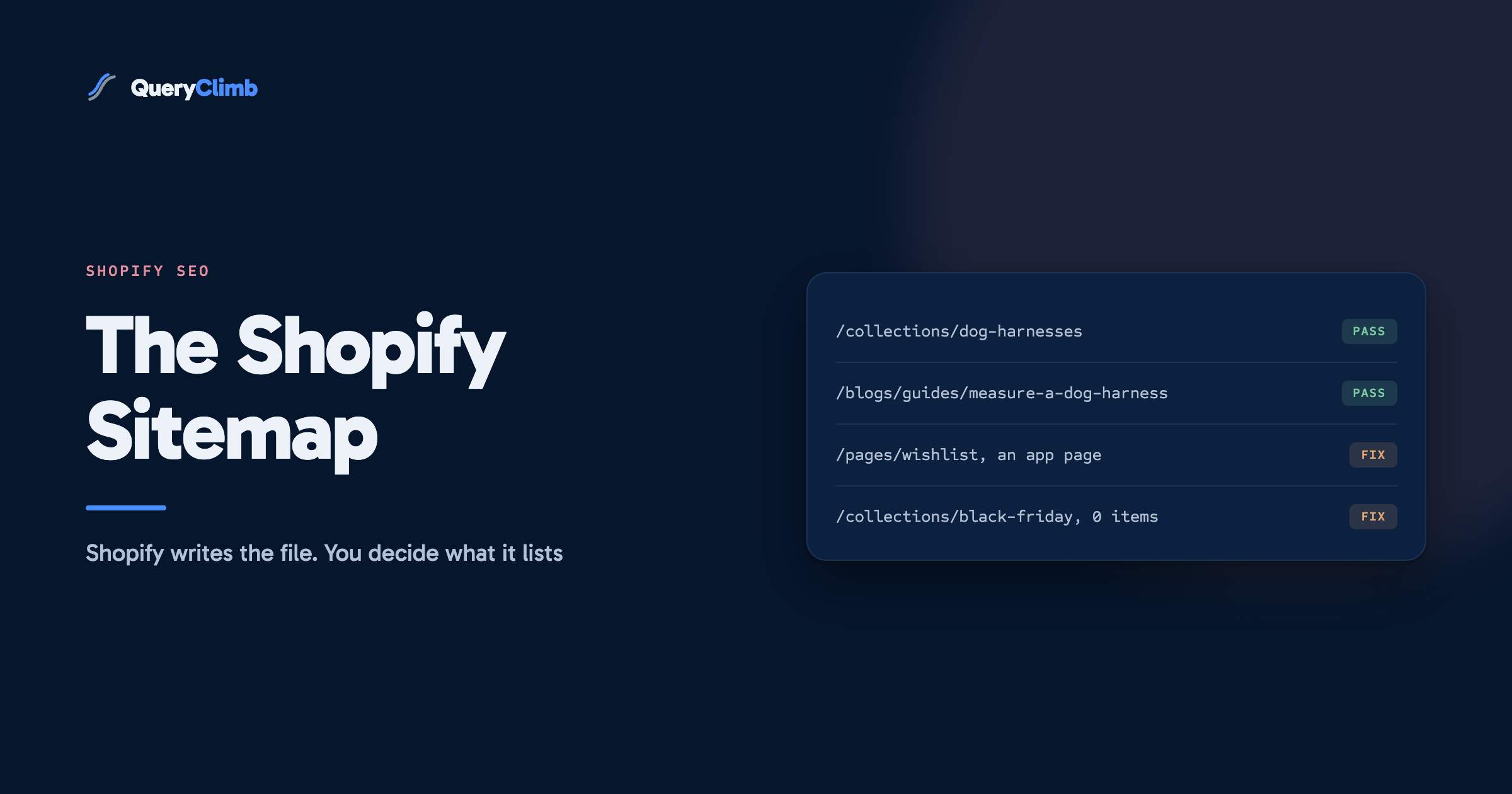
App pages are the common one. Wishlist, loyalty, store locator and reviews apps often create a page under Online Store to render their widget. On the pet store that is /pages/wishlist, a page with no content of its own that exists to show a logged-in customer their saved harnesses. It is in the sitemap because it is a page.
Empty and duplicate collections come next. A black-friday collection emptied in December, an automated new-in collection that repeats the catalogue in date order, and dog-leads alongside leads-for-dogs from two rounds of tidying all get listed. So does a collection holding one product. Google tends to treat these the way our soft 404 post describes: a page with nothing on it, whatever its status code says.
Retired products that are still published are the third. A discontinued cat scratching post left live because someone might search for it stays in the sitemap indefinitely. Sometimes keeping it is right, with a pointer to the replacement. Keeping it by accident is not.
What the data showed us
Reading the Supplements Wise sitemap for this post, the pages file listed 15 URLs. Two belong to a wishlist app, and two more, titled “Home” and “Blog”, contain nothing but their own heading, probably left over from an old theme. All four returned 200 with a self-referencing canonical and no noindex. None of them was ever meant to rank, and we had not looked at that file in over a year.
Does lastmod, changefreq or priority matter?
Only lastmod, and on Shopify you should not rely on it. Google’s guide to building a sitemap says it ignores priority and changefreq entirely, and uses lastmod only when it is consistently and verifiably accurate.
Shopify writes changefreq on every URL, daily for products and collections and weekly for pages and articles. Those values do nothing.
The lastmod dates are the part to be wary of. On the morning we checked, 95 of the 96 URLs in our products sitemap carried that same day’s date, and we had not rewritten 95 product pages overnight. Whatever moves that timestamp, it is not a record of content changes, so it is not a lever.
How do you use the sitemap to find indexing problems?
Use the Sitemaps report as a filter for the Page indexing report. That is the part of this topic worth your time, and most guides skip it.
In the Sitemaps report, click your submitted sitemap and then the link to see page indexing for it. You get the Page indexing report narrowed to the URLs in that sitemap. You can also narrow it to a single child sitemap, which is where it gets useful.
Compare the four children. On a healthy pet store most product pages are indexed, and the pages sitemap often looks poor, which is usually fine because policy and app pages were never going to be. The blogs sitemap is the one to read carefully. A block of guides under “Crawled, currently not indexed” means Google looked at them and passed. Our post on crawled, currently not indexed covers what to do with that list.
Then flip the filter to unsubmitted pages only. These are URLs Google found that are not in your sitemap: filtered collection URLs, variant parameters, old handles from before a rename. That list shows you where Google is crawling that your sitemap does not cover.
Key takeaway
Submitting the sitemap is a five-minute task you do once. The recurring value is the Page indexing report filtered by child sitemap: it shows which kind of content Google is declining, and the pages sitemap usually shows you what to hide.
Why does Search Console say it couldn’t fetch the Shopify sitemap?
Usually because the store is password protected, the sitemap was submitted on the wrong host, or Google has not got round to it yet. Google’s Sitemaps documentation lists “Couldn’t fetch” as meaning the file could not be retrieved at all, which is different from “Has errors”, where it was read and something inside it was wrong.
Check in this order.
- Load
yourstore.com/sitemap.xmlin a private browser window. If you get the password page, that is your answer. - Compare the host in Search Console with your primary domain in Shopify, including www. A mismatch means Google is fetching a redirect.
- If the store is live and the URL loads, wait a few days. A freshly submitted sitemap on a new property often shows this status before Google fetches it, and in our experience it clears without any action.
- If it persists for weeks, check whether robots.txt or a server error is blocking the file.
Do you need a sitemap app on Shopify?
For an XML sitemap, no. The generated one covers every published resource, follows Google’s size limits by splitting into child files, and updates itself. An app that generates a second sitemap gives Google two lists to reconcile.
HTML sitemap apps build a page listing every link for visitors. On a store with a working menu, nobody uses it, and it adds a thin page to the sitemap you have just cleaned up. Image sitemap apps add secondary product images, but for a harness shot from six angles the primary image Shopify already lists is the one that matters.
What this costs to run
The manual routine is short. Submit the sitemap once. Once a quarter, read the pages and collections child sitemaps in a browser, hide or delete anything you would not link to, and check the Page indexing report filtered by child sitemap. On a store with a few hundred URLs, that is well under an hour.
QueryClimb does not manage your sitemap, because Shopify already does that well. It works on the content the sitemap lists. Search Insights shows which guides and collections are gaining or losing impressions, the striking distance method finds the pages close to page one, and the content calendar, the blog writer and internal linking turn that into articles that link to the products they discuss. The manual method works without it, and the tool buys back the hours. Pricing is public, and the case study and our blog SEO system show the loop on our own store.
Frequently asked questions
How do I find my sitemap on Shopify?
Add /sitemap.xml to your primary domain, for example yourstore.com/sitemap.xml. Shopify generates it automatically for every store. There is no setting to switch on and no menu item for it in the admin.
How do I submit my Shopify sitemap to Google?
In Google Search Console, open Sitemaps, enter sitemap.xml and click Submit. Submit the index file on your primary domain only, not the individual product or collection sitemaps.
Can I edit my Shopify sitemap?
Not directly. Shopify generates the file and it cannot be edited by hand. To remove a page, product or blog post from it, set the seo.hidden metafield to 1, set a product to Unlisted, unpublish it, or delete it.
How often does the Shopify sitemap update?
Shopify updates it automatically when you add or change products, collections, pages, images or blog posts. You do not need to regenerate or resubmit it after routine changes.
Why does my Shopify sitemap say “Couldn’t fetch”?
The most common causes are a store still behind its password page, a sitemap submitted on a domain that redirects to your primary one, or a new submission Google has not fetched yet. Load the sitemap URL in a private window first to rule out the password page.