The short answer
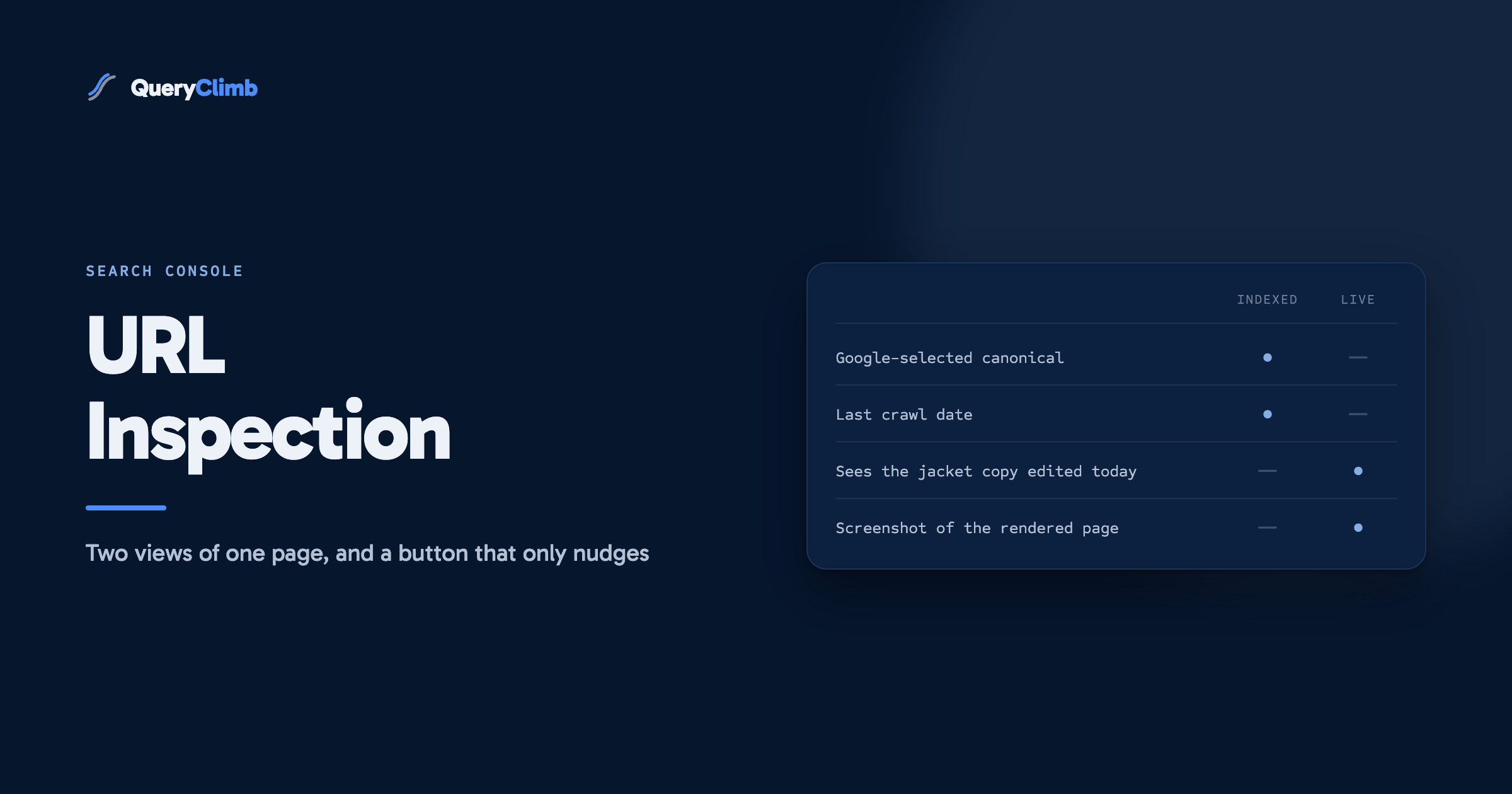
The URL Inspection tool shows two different things: the indexed version, which is what Google stored the last time it crawled the page, and the live test, which is what Google would see if it fetched the page right now. Most confusion comes from reading one as the other. Request Indexing asks Google to recrawl one URL sooner; it is worth pressing once after a real change and achieves nothing when pressed on a page Google has already decided against.
The URL Inspection tool is the one place in Search Console that answers a question about a single page rather than the whole site. Paste in a URL and it tells you whether Google has indexed it, when Google last crawled it, which canonical Google picked, and whether the page could be indexed if Google fetched it today.
It is also the tool that gets misread most often, usually by treating a green live test as proof a page is in Google.
The examples here come from an outdoor kit store selling waterproof jackets, walking boots and rucksacks, with seasonal ranges that sell out for half the year.
What is the URL Inspection tool in Google Search Console?
It is a per-page report that shows what Google knows about one URL in your property. You open it from the search bar at the top of any Search Console screen, or from the magnifier icon next to a URL in most reports.
Google’s URL Inspection tool help page describes two modes, and they answer different questions.
- The indexed version is the default view. It reports on the copy of the page Google stored at its last crawl.
- The live test fetches the page now, as Googlebot would, and reports whether it could be indexed in its current state.
The URL has to belong to the property you are in. If you verified a URL-prefix property for https://www.example.com, you cannot inspect a page on the bare domain or another subdomain from there. A Domain property covers every variant, which is one more reason to set it up that way.
What does the indexed version tell you?
It tells you what Google did with the page at its last crawl, and nothing about changes since. Google’s help page says the results come from the most recently indexed version, not the live page.
The top line is the verdict: “URL is on Google” or “URL is not on Google”. Below it, the page indexing section breaks that down into three parts.
Discovery lists the sitemaps that include the URL and a referring page Google found it through. If both are empty on a product page you care about, your own site is not pointing at it.
Crawl shows the last crawl date, which crawler was used, whether robots.txt allowed the fetch, and whether the page allowed indexing. On the jacket store, an autumn product that shows “Last crawl” from April was crawled while it was still a sold-out holding page, and that is the version Google is working from.
Indexing shows the user-declared canonical and the Google-selected canonical. When they differ, Google has grouped your page with another URL and kept the other one. Our post on when Google chooses a different canonical covers what to do about that.
Below that sit the enhancements Google detected on that crawl, such as product snippets and breadcrumbs. A schema fix shipped yesterday will not appear here yet.
Worth knowing
”URL is on Google” means the page is in the index and eligible to appear. It says nothing about where it ranks or whether anyone has seen it. To find out whether an indexed page is earning impressions, filter the Performance report by that page. A page can sit in the index for months with no impressions at all.
What does the live test check?
The live test fetches the page as it is now and reports whether Google could index it. It is the right check after you change something, because the indexed version will not reflect your change until Google next crawls.
Click “Test live URL”. The result says whether the URL is available to Google, and “View tested page” opens the rendered HTML, a screenshot and the HTTP response. Google’s help notes that screenshots exist only for the live test, never for the indexed version.
What the live test leaves out matters as much as what it checks. According to the same help page, it does not test canonical selection or duplicate detection, manual actions, or whether the page meets quality thresholds. It also says outright that a positive result is not a guarantee the page will appear in search.
So a live test on the women’s three-layer shell that says “URL is available to Google” proves the page can be fetched, is not blocked, and has no noindex. It does not prove Google will index it, because the question that usually keeps a product page out (is this page different enough from the men’s version?) is not one the live test asks.
Why do the indexed version and the live test disagree?
Because they describe two different moments. The indexed version is Google’s memory of the page. The live test is the page today. Whenever you have changed something since the last crawl, they will differ, and that is expected.
On the outdoor store, the usual cases look like this:
- The indexed version says “Excluded by noindex tag” on a new rucksack, but the live test passes. Someone launched the product as a draft with noindex set by an app, then removed it. Google has not been back yet.
- The indexed version shows last season’s walking boot with an out-of-stock product snippet, while the live test shows it back in stock. The structured data is right now; Google’s stored copy is from before the restock.
- The indexed version reports the reproofing guide as fine, but the live test fails with a server error. The page has broken since the last crawl, and you have found it before Google has.
The first two resolve on the next crawl. The third needs fixing today.
What the data showed us
On our own store, the single most useful habit with this tool has been running the live test straight after publishing or editing a page, before anyone requests anything. It has caught an app injecting noindex on new pages and a theme change that blanked the rendered description for Googlebot while it looked fine in a browser. Neither showed up anywhere else until weeks later.
How do you read the screenshot and rendered HTML?
Read them for content, not pixel accuracy. The screenshot is often cropped; what matters is whether the words and links that make the page worth indexing are in the rendered HTML.
For the waterproof jacket page, search the rendered HTML for a sentence from the description and the link to the care guide. If the description is missing, a script Google did not run or could not fetch is loading it, and the “More info” panel usually lists the blocked resource.
Theme apps are the usual cause. Content loaded late by a review widget is harmless; it is a problem when the widget holds the only unique text on the page.
What does Request Indexing actually do?
It asks Google to recrawl that one URL sooner than it otherwise would. That is all it does. It does not override Google’s decision about whether the page deserves to be indexed, and Google says so in its guide to asking Google to recrawl your URLs: requesting a crawl does not guarantee inclusion “instantly or even at all”.
The same guide sets the expectations worth knowing:
- There is a quota on individual URL requests per property, and Google does not publish the exact figure.
- Requesting the same URL more than once does not get it crawled any faster.
- Crawling can take anywhere from a few days to a few weeks.
- For many URLs at once, submit a sitemap instead.
So the honest use is narrow: press it once, on a page you have just changed in a way that matters, after the live test has passed. A new seasonal collection or a rewritten product description qualifies.
Pressing it on a page that is not indexed because Google judged it a duplicate or thin is wasted quota. Google will recrawl the same page and reach the same verdict. The fix for those pages is in the content, which our post on crawled, currently not indexed covers.
Key takeaway
Request Indexing is a doorbell, not a key. Ring it once when something behind the door has changed. If Google has already visited and decided not to keep the page, ringing again changes nothing; changing the page does.
Is there a way to request indexing in bulk?
Not through the tool, and the shortcuts sold for it are worth avoiding. The supported way to tell Google about many changed URLs is an up-to-date sitemap with accurate lastmod dates. Shopify and most hosted platforms generate this automatically, and our Shopify sitemap post covers what it lists.
You will find plugins and services promising “instant indexing” through Google’s Indexing API. Google’s Indexing API documentation limits it to pages with job posting or livestream structured data. Using it to push product pages or blog posts is outside what the API is for, and nothing Google has published suggests it helps ordinary store pages.
There is a separate URL Inspection API for reading inspection results programmatically. It returns the indexed-version data, it cannot request indexing, and Google’s usage limits page caps it at 2,000 inspections per property per day. That is enough to check every product on a small catalogue once a day, which is useful for spotting pages that drop out of the index.
When should a store owner use it, and when not?
Use it to answer a specific question about a specific page. It is the wrong tool for surveying a site.
Good uses on the outdoor store:
- After launching or editing a product or collection, run the live test before requesting anything.
- When a page appears in a Page Indexing report reason, inspect one example URL to see the canonical Google chose and the last crawl date.
- When a page has stopped appearing in the Performance report, check whether it is still indexed and when it was last crawled.
- Before a seasonal push, inspect the handful of collections that matter most, such as waterproof jackets ahead of autumn, so a stale crawl does not catch you out.
Poor uses: auditing a whole catalogue one URL at a time, or pressing Request Indexing daily on a page that stays excluded. For the catalogue-wide view, start from the Page Indexing and Performance reports; our Search Console guide to striking distance keywords shows how to find which indexed pages are close to earning clicks.
Do you need a tool for this?
No. Everything in this post is free inside Search Console, and on a store with a few hundred pages the manual habit of a live test after each change takes a minute a page.
Where QueryClimb helps is in the step around it. Search Insights shows which indexed pages are earning impressions and which have gone quiet, so you know which URLs are worth inspecting. The content calendar and the blog writer check for existing pages before planning a new one, which keeps near-duplicates out of the index in the first place, and internal linking gives new posts a referring page from day one. It buys back hours; the method works without it. The case study shows the routine on our own store, and pricing is public.
The wider system is in our blog SEO guide: publish pages that answer a query nothing else on your site answers, link to them, and let Google crawl at its own pace.
Frequently asked questions
How do I use the URL Inspection tool in Google Search Console?
Paste the full URL into the search bar at the top of Search Console, in the property that contains it. The default view shows the indexed version from Google’s last crawl. Click “Test live URL” to check the page as it is now, and “View tested page” for the rendered HTML and screenshot.
How long does Request Indexing take?
Google’s own guidance says crawling can take from a few days to a few weeks, and a request does not guarantee indexing at all. In our experience a page that is fit to index is often recrawled within a day or two of a request, but plan around Google’s range, not the quick cases.
How many times can I request indexing in Search Console?
There is a daily quota per property, and Google does not publish the number. Requesting the same URL repeatedly does not speed anything up, so one request per changed page is enough. For many URLs, keep the sitemap accurate instead.
Why does URL Inspection say the URL is on Google but it does not show in search?
Being indexed only makes a page eligible to appear. Whether it shows for a given search depends on ranking, which the tool does not measure. Check the Performance report filtered to that page to see whether it earns impressions and for which queries.
Why does the live test pass but the page is still not indexed?
The live test checks whether Google can fetch and index the page technically. It does not check duplication, canonical choice or quality, which are the usual reasons a store page stays out. Compare the page against its closest sibling and make it clearly different, then request indexing once.